

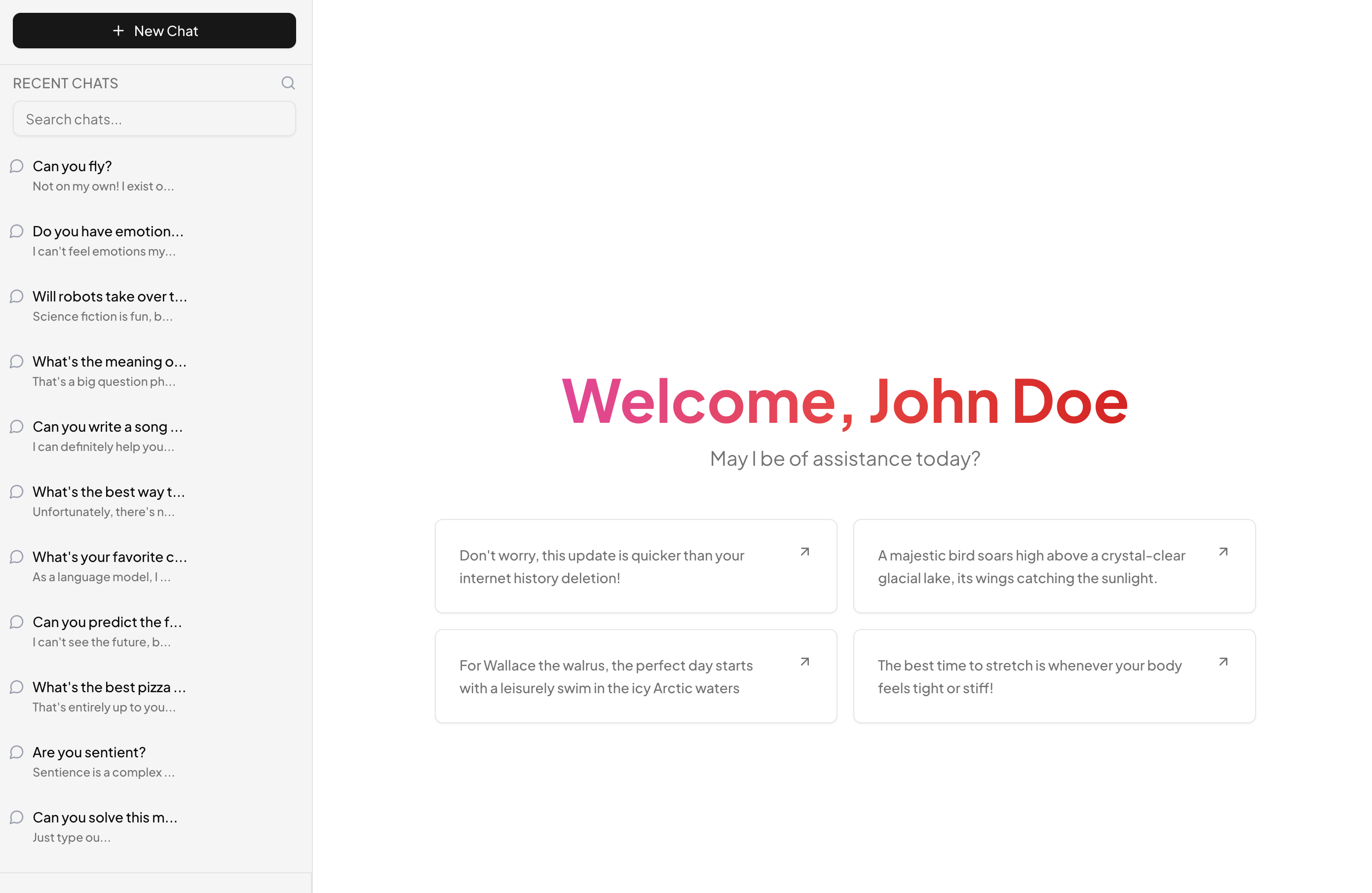
An AI Chat Interface, Ready to Wire Up
AI Chat is a full-page conversational block for building ChatGPT-style assistants. It gives you the three screens every AI product needs: a sidebar listing past conversations, a welcome view with clickable prompt suggestions for the empty state, and the live chat itself with a message list, streaming responses, and a prompt input pinned to the bottom.
Unlike a plain message list component, this block already handles the flow between those states. Selecting a conversation or a suggestion moves the user from the welcome screen into the chat interface, and the layout stays responsive from a phone-width column to a wide desktop split.
From Support Bots to Copilots
The obvious home for this block is a standalone AI assistant, but the same layout serves customer support bots, documentation Q and A, internal knowledge tools, and in-app copilots that live behind a menu item. Anywhere a user types a question and a model answers, this structure applies.
If your product needs human-to-human messaging instead, the chat apps category covers that pattern with contact lists and group threads. The two can coexist: many teams ship a human chat screen and an AI assistant that share the same visual language because both are built from the same Shadcn UI primitives.
How the Block Talks to a Model
The chat logic is wired to the useChat hook from the Vercel AI SDK. The hook manages the message array, the input value, submission, and the loading flag, and it streams tokens from an /api/chat endpoint as they arrive. That means connecting a real model is mostly a backend task: implement the route with your provider of choice and the interface starts streaming.
Everything else is standard React and Tailwind. Conversation history and prompt suggestions come from a typed data file, the message area scrolls inside a Shadcn UI Scroll Area, and the whole page is client components you can read top to bottom.
Colors, Tokens, and Dark Mode
The block styles itself entirely through Shadcn UI design tokens: user bubbles sit on primary, assistant messages on muted, and chrome like the sidebar and header on background and border variables. Adjusting your palette in globals.css restyles the assistant without touching a component file, and dark and light mode both resolve from the same CSS variables.
Structural changes are equally approachable. The prompt suggestions, the sidebar sections, and the header actions are small components, so rebranding the welcome screen or trimming the sidebar down to a minimal history list is a matter of editing focused files rather than untangling one large page.
Install, Connect, Ship
Inside the block you will find the Shadcn UI Sidebar, Button, Input, Textarea, Scroll Area, Avatar, Badge, Label, and Dropdown Menu components, with Lucide icons throughout. The block ships in React, Vuejs, and Svelte versions; the Vuejs and Svelte editions build on the shadcn-vue and shadcn-svelte ports, and the shadcn-vue ecosystem documents the matching component APIs.
AI Chat is a pro block, so the code tab and CLI install unlock with an All Access plan. Once unlocked, the shadcn CLI command at the top of the example page installs it with npm, pnpm, yarn, or bun, or you can copy the files from the code tab. From there, point useChat at your own API route, replace the sample conversations with persisted ones, and the assistant is live.